

Blogs
What Does Collate Mean When Printing? When and How to Use It

If you’ve ever sent a multi-page document to print and stared at the collate checkbox wondering whether to tick it or leave it alone, you’re not alone. It’s one of the most commonly misunderstood settings in everyday printing. It is one of the most useful once you actually know what it does.
Key Takeaways
In this guide that is written by experts, you will learn:
- What collate means in printing?
- When to use Collate in Printing?
- How to enable Collate in printing?
- Basic Differences between Collated and Un-collated Printing.
- Step by step process guide on how to print collated pages.
- How to collate on specific printers?
- Key benefits of collating printing.
At the end you will find out the true strength of the topic and it clears all your doubts related to collated printing because Little Rock Packaging has 10+ team who has expertise in custom printing and this article is written and reviewed by printing experts.
What Does Collate Mean in Printing?
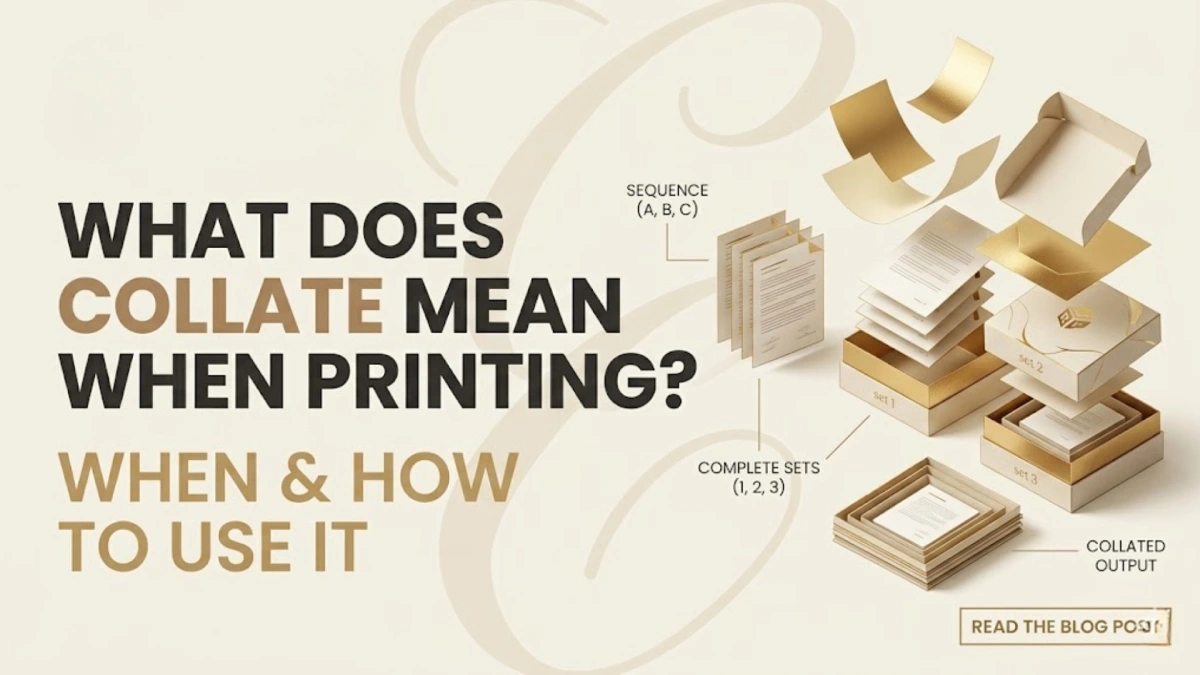
Collate in printing means organizing multiple printed copies of a document so that each complete set comes out in the correct page order before the next set begins. When you print a collated document, your printer completes one full copy — page 1, page 2, page 3 — then starts the next complete copy, and so on, until all requested copies are finished.
The word itself originates from Latin collatus meaning “to bring together.” In the context of printing it is the act of collating pages in the correct order. It may sound simple however the distinction between uncollated and collated printing can have significant implications depending on the print and the reason for it.
Collated vs. Uncollated Printing: The Key Difference
This is the comparison that clears everything up immediately. Imagine you have a 3-page document and you need 3 copies.
Collated output comes out like this:
- Copy 1: Page 1 → Page 2 → Page 3
- Copy 2: Page 1 → Page 2 → Page 3
- Copy 3: Page 1 → Page 2 → Page 3
Each set is complete and in order the moment it leaves the printer. You can hand each copy directly to a recipient without any sorting.
Uncollated output comes out like this:
- Page 1 → Page 1 → Page 1 → Page 2 → Page 2 → Page 2 → Page 3 → Page 3 → Page 3
All copies of page 1 print first, then all copies of page 2, then all copies of page 3. The output sits in a stack that requires manual sorting before it can be distributed.
The numeric shorthand people use is:
- Collated = 1-2-3, 1-2-3, 1-2-3.
- Uncollated = 1-1-1, 2-2-2, 3-3-3.
That single distinction is the entire concept — and once you see it, the checkbox on your print dialog will never confuse you again.
When Should You Use Collate and Un-Collated Printing?
Collated printing is the right choice in the vast majority of everyday print scenarios. If you are printing anything that someone will read, distribute, present, or file as a complete document, collate is what you want. Reports, presentations, meeting agendas, employee handbooks, proposals, booklets, contracts, and multi-page forms all benefit from collated output because each copy arrives in a usable state without any additional sorting work.
Uncollated printing is a good idea for a smaller set of circumstances. If you require more than one copy of a single-page flyer, then uncollated is acceptable because there’s only one page so ordering isn’t a factor.
Uncollated is also a good option when printing large quantities and intend to have the printer for collating and binding downstream because some commercial print workflows are specifically designed to sort out mechanically following the fact. The practical rule of thumb: for any document with two or more pages that will be distributed as a set, always print collated.
True Benefits of Collated Printing
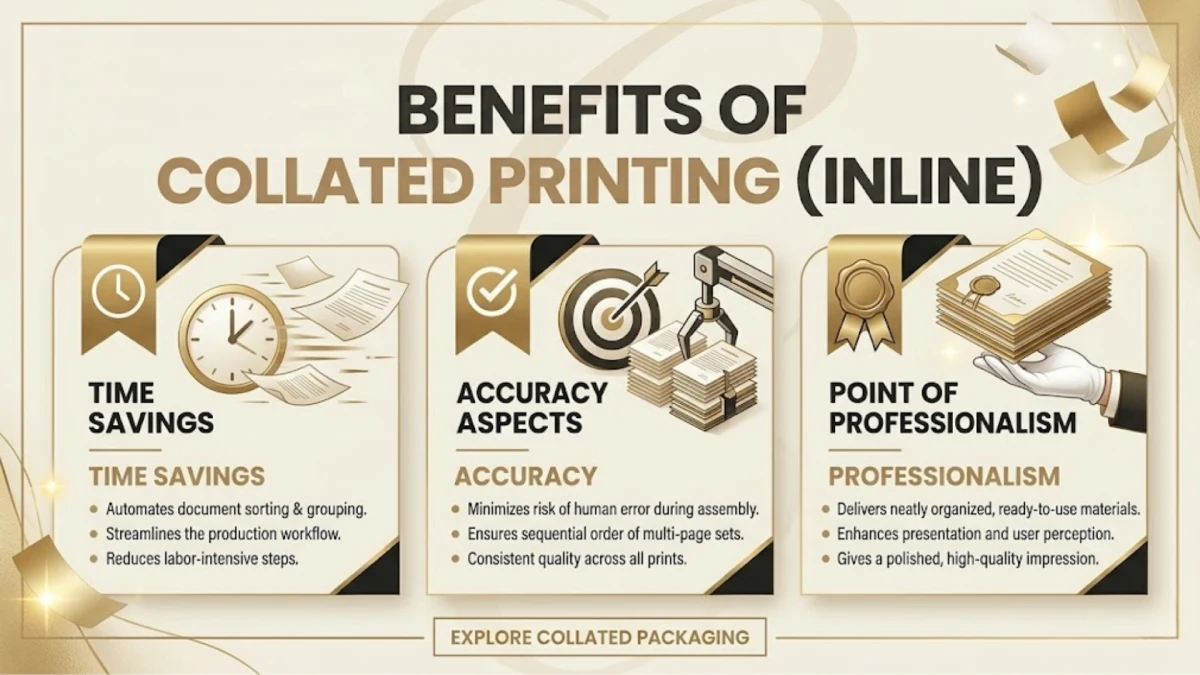
1. Time Savings
The most obvious benefit is time savings. When you print 20 collated copies of a 10-page document, they come off the printer ready to distribute. No one needs to stand at the output tray sorting pages into piles. In office environments where printing large batches for meetings or training sessions is routine, collated printing eliminates a surprisingly significant amount of manual labor over the course of a year.
2. Accuracy Aspects
The second benefit is accuracy. Human sorting is error-prone, especially with long documents or when printing is done under time pressure. Collated printing removes that variable entirely — the machine handles sequencing, and every copy is guaranteed to be in the right order.
3. Point of Professionalism
The third benefit is professionalism. Handing someone a perfectly ordered, ready-to-read document makes a different impression than handing them a loose stack of pages to sort themselves. For client-facing materials, presentations, or proposals, this detail matters.
Step by Step Process on How to Print Collated Pages
1. On Windows
Open the document, and then press the keys Ctrl + P in order to launch the dialog print. Within the Copies section, you’ll notice an option marked “Collate.” Make sure that the checkbox is ticked. Make sure you have the correct number of copies and then press Print. Windows will send the pages to the printer in a the form of a collated order.
2. On Mac (macOS)
Press Command + P to open the print dialog. Click “Show Details” if the full options aren’t visible. In the Copies field, check the box next to “Collate.” This setting works across most Mac applications including Pages, Preview, and Microsoft Word for Mac.
3. In Microsoft Word
Go to File → Print. In the Settings section beneath the number of copies, you’ll see a dropdown that says either “Collated” or “Uncollated.” Select “Collated” from that menu. Word passes this instruction directly to your printer driver.
4. Printing a Collated PDF in Adobe Acrobat
Ctrl+P (Windows) as well as Command + P (Mac). Within the dialog for printing, choose the number of copies you’ll need. It is important to note that the “Collate” checkbox appears in the section for copies. Click it, then print. Acrobat handles page sequencing reliably even for large, complex PDFs.
Turning Off Collate When You Don’t Need It
In any of the above dialogs, simply uncheck the Collate box. This switches output to uncollated mode — all copies of each page print together before moving to the next page.
How to Collate on Specific Printers: Epson, Canon, HD Printers Etc
HP Printers
HP’s print dialogue that is accessible via Windows or Mac is based on the same process as described above. For HP printers that have touchscreens the option to collate sometimes is found directly on the control panel in Settings – Copy – Collate. Switch it on before beginning your copying job.
Canon Printers
Canon printers use the same process of driver-based printing that is used on Windows as well as Mac. If you use Canon’s IJ Printer Utility or Canon Print application The collate option is available in the “Finishing” tab in the complete printing properties tab.
Epson Printers
The print settings panel of Epson includes the “Collate” checkbox under the Print Preferences – the Main tab on Windows. On Mac it’s in the print dialog. Epson’s EcoTank and WorkForce series both have collation support natively.
Brother Printers
In the Brother printer driver on Windows, go to Print → Printer Properties → Basic tab. The collate checkbox is available there. Brother’s business-class printers also support collation from the machine’s front panel under Copy settings, which is useful for walk-up copying without a connected computer.
Difference Between Automatic vs. Manual Collating
Automatic Collating
Automatic collating is handled by your printer or software. You set the number of copies, check the collate box, and the machine sequences everything correctly without any physical intervention. This is what the collate setting in any print dialog does.
Manual Collating
Manual collating means printing uncollated output and sorting the pages by hand afterward. Before digital print settings made automatic collating standard, manual collation was common practice in print rooms and offices. It is still occasionally used in commercial print environments where post-printing finishing equipment performs the sorting more efficiently than the printer itself.
For home and office users, automatic collating is almost always the better option. There is no meaningful speed disadvantage, and the accuracy benefit is significant.
Common Problems and Troubleshooting Collation Issues
1. Printer is not Collating?
The most common cause is that the collate checkbox was not selected before printing. Go back to the print dialog, verify the box is checked, and resend the job. Some applications save the last-used setting, so if collate was unchecked previously it may default to that.
2. Collate Option Greyed Out Issues
It usually happens when just one copy is chosen. The collate setting doesn’t matter for a single copy therefore, most systems gray it out automatically. Make sure that the amount of copies is more than two so that the feature will then become active.
3. Collating Incorrectly on Windows 11
It can be caused by an issue between the collation setting of the application and the driver’s collation settings -each trying to control the same sequence. In your print dialogue look for an “Let the application collate” option instead of “Let the printer collate” and then set it to either one or the other in a consistent manner. The driver for your printer should be updated to the latest version on the website of the manufacturer can resolve this.
4. Collate Works in Word but not in PDF
Ensure you are printing directly from Adobe Acrobat rather than using the browser’s built-in PDF viewer. Browser PDF viewers often strip advanced print settings including collation. Download the file and open it in Acrobat for full control.
Collated Printing in the Modern Workplace
The collate setting is one of those small details that carries outsized impact in high-volume document environments. Law firms printing case files, HR departments distributing onboarding packets, schools printing exam sets, and marketing teams preparing presentation decks all depend on reliable collation to run efficiently. In U.S. commercial printing services, collated copies are the standard default for any multi-page job ordered in bulk — and most professional print shops charge no additional fee for it.
Understanding collate doesn’t just save you time at the print tray. It gives you confident control over one of the most frequently used tools in any professional or home office environment — and that clarity pays off every single time you hit print.
Conclusion: Why We Guide You About Collate Printing
We little Rock, an U.S.-based custom printing business. We wrote this guide due to collating being one of the top concerns we hear from clients placing bulk orders. Whether it’s 500 copies of an employee handbook, training packs for a corporate on-boarding program or event program for large-scale conferences.
We’ve had too many customers receive their printed jobs only to discover that they required collated instead of non-collated copies and then sorting through thousands of pages that are not collated by hand, with deadline stress, is a scenario we’d like to help avoid completely.
When you place an order with Us, your collation will be verified before you even print, and your document is reviewed against the requested specifications before going to print. The final product is ready to be distributed without any additional processing, and no stress at the last minute.
This guide is a part of our continuing effort to make professional printing easy for business owners as well as everyday users throughout America. United States, because an the informed customer always receives the best results.
Frequently Asked Questions
Q: What does collate mean on a printer in simple terms?
It is the way your printer creates every complete copy of a document in the order it was created before beginning the next. Three copies of a document with three pages are printed as 1-2-3, 1-1-3, 1-2-3 and not 1-1-1, 22-2, 3-3-3.
Q: Should I print collated or uncollated?
For any document that is multi-page and you intend to distribute or read opt for collated. For single-page documents, or those that feed into a sorter machine it is okay to use uncollated.
Q: Does collating slow down printing?
A little, in certain cases. Because the printer has to complete each copy completely before moving onto the next one, the output slows down between sets. For the majority of office and home jobs, the distinction is not significant.
Q: Do I have to collate pages manually if I forget to check the box?
Yes, output that is not collated requires manual sorting. For smaller documents, this is a manageable task. For documents that exceed five pages, printed at a high volume, manual sorting can be time-consuming enough to be worth reprinting if collation is enabled.